Using Text Tokens
Several text-based properties and other CygNet features, applications, and utilities allow you to use text tokens to define a dynamic string of text. A text token represents a point attribute. This includes any property from the point configuration record, the point’s CVS record, or its facility. In Run mode, tokens are replaced with the actual item.
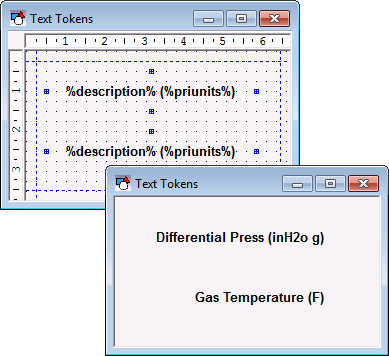
One of the properties that allows the use of text tokens is the Text property. In the example below, the text for both tools is defined as %description% (%priunits%), which are the Description of the point and its Primary Units. The items enclosed in the percent signs are text tokens. They are replaced in Run mode with the actual item.
|
Text Tokens |
When using a property or feature that supports text tokens, it will have an Edit Text field in which you build the text string by selecting text tokens and typing static text. The text string can have line breaks and the display formats can be applied to tokens. The tokens are categorized for ease of lookup.
Note: The tokens are color-coded to assist with readability, but the colors do not appear in the dynamic text.
|
Edit Text Dialog Box |
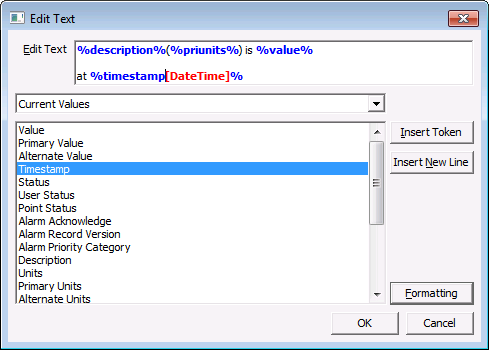
Note: The title of this dialog box depends on the item you are editing.
The properties on the Edit <item> dialog box are described below.
| Parameter | Description |
|---|---|
|
Edit Text |
Shows the text and/or tokens that will be displayed. In the GNS, this field displays the text that will be used in the notification message (subject line, body, or WAV file name). This field may include tokens that refer to the source (current) point that is triggering the notification AND reference tags to other related points. |
|
Drop-Down Menu |
Available attributes are categorized into logical groups for ease of lookup. Select a desired category from the drop-down menu. |
|
Attribute |
All current attributes defined in the CygNet system. For each category, select the desired value. See Token Categories for a complete list of values by category. |
|
Insert Token |
Click to insert the desired token into the Edit Text field. Repeat to display multiple values. Note: Add static text, spaces between tokens, parentheses, and other punctuation, as desired. |
|
Insert New Line |
Click Insert New Line to add a line immediately after the current token. In the GNS, only notification messages allow the use of multiple lines of text. Note: While the Edit Text field has focus Ctrl+Enter will insert a new line wherever the cursor is located. |
|
Reference Tag |
Note: This option is ONLY available in the General Notification Service. Use Reference Tag to include other points (data values or descriptive information) in a notification message using reference point token substitution. See Including Other Points in Notifications for more information about how to format and build up a reference tag for a point other than the point triggering the notification. |
|
Formatting |
Display formats can be applied to tokens. The format string is included in the token string within square brackets. An example of a format applied to a value token would be %value[0.0]%, where [0.0] is the display format. See [DisplayFormat] property for more information regarding display formats. Click Formatting to specify a custom display format for the token. See Displaying Service Monitor Point Date/Time for more information about formatting strings of text. |
To Build a String Using Text Tokens
- Show the Edit <item> dialog box by clicking … next to the item for which you want to add a token.
- Clear the text in the Edit Text field.
- Select a category from the drop-down menu.
- Select an attribute from the list and click Insert Token to add it to the field. Double-clicking a token will also add it.
- Repeat to add more tokens, as desired.
- Type in the Edit Text field to add static text, spaces between tokens, parentheses, and other punctuation.
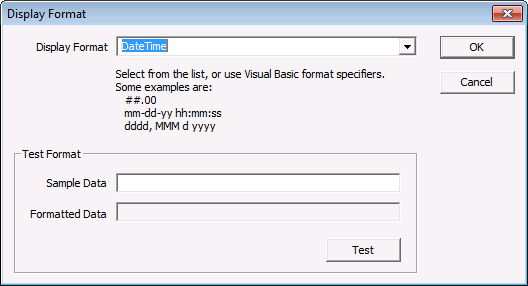
- To format a token, click inside the token’s closing percent sign and click Formatting to view the Display Format dialog box. Select an appropriate display formatting option from the Display Format drop-down menu.
|
Display Format Dialog Box |
- To add a new line, place the cursor where you want the break and then click Insert New Line. You also can use Ctrl+Enter to insert a new line wherever the cursor is located.
- Click OK to save the string.
Formatting Text Tokens
Display formats can be applied to text tokens the same way they are applied to [DisplayItem] attributes. The format string is included in the text token string within square brackets. An example of a format applied to a value token would be %value[0.0]%, where [0.0] is the display format. For more information regarding display formats see [DisplayFormat] property in the Properties topic.
Beware of Typographical Errors
If you have a typographical error in a token, the resulting text will include the typo. If you use %Desc% instead of %Description%, the message will include %Desc% as shown below, since %Desc% is not a valid token.
|
%Desc% High Alarm on McKee 2-1. Value is 45.0128. |
Note: Tokens are formatted in bold to make mistakes easer to identify.
More:


